

Hosting meetings
Host meetings, configure participant access, meeting tools, participant controls, and the overall meeting experience.
Host meetings in Bridge
Hosting a meeting in Bridge gives you a native video conferencing experience with essential conferencing tools you expect, plus Live collaboration and Live AI, without a separate tool or plugin.
Starting a meeting
Choose the meeting type that fits your workflow.
Select New → Start instant meeting to open the meeting immediately. Share or invite people and agents from the Participants panel.
Select New → Schedule on calendar to open Google Calendar or Microsoft Outlook with a unique meeting link automatically added to the calendar event.
Select New → Create meeting link to generate a unique meeting link that can be shared with others or added to a calendar event.
The meeting experience
At the top of the meeting
- Meeting overview icon that includes information from the pre-meeting brief when available
- Meeting title pulled from the host's calendar (hosts can edit the meeting title)
- Recording, transcription, and notetaking badges when those meeting tools are active (visible to all users)
- Participant avatars show who is in the call
- Hosts will see the request queue indicator when guests are requesting access
- Session preferences menu:
- Video:
- Video effects:
- Background blur
- Background images (preset and custom uploads)
- Video mirroring
- Layout:
- Dynamic, where tiles resize as people join
- Sidebar, where the speaker is large and others appear beside them
- Spotlight, which shows only the active speaker
- Video effects:
- Host Controls (visible only to the host, see hosting meetings):
- Meeting tools
- Participant controls
- Meeting access
- Panels:
- Show or hide all or individual panels: Participants, Chat, Conversation, Notepad, Assistant, and Artifacts
- Auto-hide meeting controls on hover
- Context:
- Set your session context to Professional, Personal, or Academic, and choose a domain to personalize AI output for the current meeting
- Video:
Meeting panels
Panels can be hidden, resized, or disabled.
- Video: participant tiles, screen shares, raised hands, muting, profiles, talking indicator (video tiles can not be hidden as a panel, but participants can disable their camera and mic)
- Participants: people and agent invites, visibility of who is on the call, participant muting, profile links, raised hands, and a talking indicator
- Chat: for in-meeting messages
- Conversation: shows the live transcript
- Assistant: for live AI support
- Artifacts: real-time structured notes
- Notepad: for private thoughts
The bottom meeting control bar
- Microphone toggle and settings
- Device selection
- Noise cancellation
- Camera toggle and settings
- Device selection
- Background blur
- Background images and effects
- Screen sharing
- Share a browser tab (optionally share tab audio as well)
- Share an application window (optionally share system audio as well)
- Share entire screen (optionally share system audio as well)
- Recording
- Reactions (emojis float on screen for all participants)
- Raise hand
- More options:
- Meeting tools (available to the host only)
- Participant controls (available to the host only)
- Hide/show all panels
- Adjust layout
- Open picture-in-picture
- Get support
- Leave and end meeting controls
Host controls
Meeting Access
Meeting access controls allow meeting hosts to manage who can join a meeting.
Meeting access controls can be set for all meetings from account preferences and adjusted per-meeting from session preferences (within the pre-meeting brief or in-meeting settings).
Meeting access controls:
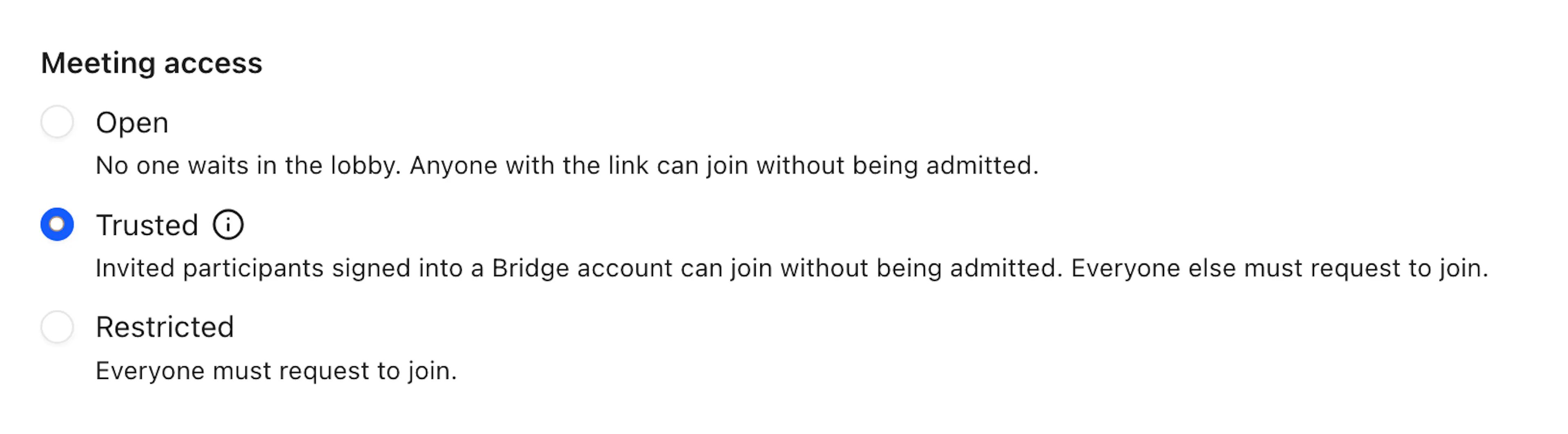
- Open: No one waits in the lobby. Anyone can join without being admitted.
- Trusted: Invited participants signed into a Bridge account can join without being admitted. Everyone else must request to join. This is the default account-level setting.
- Definition of "invited": participant was invited on the calendar event (when calendar is connected), invited from inside the meeting, invited from the person's profile, or someone who joined the meeting earlier chooses to rejoin.
- Restricted: Everyone must request to join.
Meeting access logic:
- At the account-level, if meeting access is changed, it changes any existing links and future links created from your account.
- Once you change the access controls for a specific meeting from the session preferences, only that specific meeting will now have the new access controls. The subsequent meetings using the same meeting link will revert back to your account preferences.
- If you want all meetings associated with a specific meeting link to have the same access controls, you will need to change your account preferences or change access per meeting from the session preferences.
- For drop-in meetings (meetings initiated from someone's profiles), those meetings will respect the meeting access controls as defined in your account preferences.
Lobby and admission
When participants request to join from the meeting lobby, they are added to the waiting room, which is shown to the host as a request queue in-meeting. Open the request queue in the top header (to the left of the participant avatars) to review each participant waiting to join, then select Admit or Deny.
Meeting-level settings
Hosts can control which capabilities are available in the current meeting. These settings apply only to the current meeting and can be changed at any time:
Meeting tools (see Notetaking):
- Record
- Transcribe
- Take notes
Participant controls (see Live collaboration):
- Chat: enable or disable the ability for all participants (including the host) to use chat
- Artifacts: enable or disable the ability for all participants (including the host) to see artifacts
- Screen share: enable or disable the ability for other participants to use screensharing
- Recording: enable or disable the ability for other participants to start and stop recording
Ending the meeting
Select Leave to exit while other participants continue the call. Select End meeting for all to close the call for everyone.
Configure account-level conferencing defaults, such as host controls, auto-recording, auto-transcription, auto-notetaking, video and background effects, panel visibility, and more in Account settings → Preferences.