

Host a meeting on Bridge
Meetings can be hosted on Bridge with all of the essentials you'd expect from a video conferencing platform, plus what only Bridge can offer — live AI agents, adaptive intelligence, real-time automation, and contextual memory.
Meetings can be hosted natively on Bridge by scheduling ahead, sharing a meeting link, or starting an instant meeting. Anyone with the link can join the meeting once admitted.
Ways to host a meeting on Bridge
There are four ways to start a Bridge-hosted meeting, each suited to a different scenario.
1. Schedule on your calendar
Click New, then Schedule on calendar. Bridge creates a meeting link and opens a prefilled event in Google Calendar or Outlook with the Bridge URL in the location and description. This is ideal for recurring or one-off meetings where you want the link attached to a calendar invite with attendees from the start. If no calendar is connected, Bridge asks you to choose Google Calendar or Outlook first.
2. Create a meeting link
Click New, then Create meeting link. Bridge generates a reusable /meet/… URL you can copy and paste anywhere, including a calendar event description, email, Slack message, etc. The meeting doesn't start until you open the link as host. Use this when you need a shareable link but don't need a calendar event created for you.
3. Start an instant meeting
Click New, then Start instant meeting. Bridge creates the room and drops you in immediately as host. Share the meeting link with anyone you want to join. This is the fastest path when you need to talk now and invite people on the fly.
4. Start a drop-in meeting with someone
Hover over a workspace member profile or navigate to a memory profile and start a drop-in meeting with them. Drop-in meetings are quick, ad-hoc sessions with teammates or stakeholder, with no calendar invite or external link needed. Participants invited to a drop-in meeting will be notified via email and within Bridge
Meeting access
Guests don't need a Bridge account to join. When they open the meeting link, they land on a meeting lobby where they enter their name and preview their camera and microphone.
Meeting access controls allow meeting hosts to manage who can join a meeting.
Meeting access controls can be set for all meetings from account preferences and adjusted per-meeting from session preferences (within the pre-meeting brief or in-meeting settings).
Meeting access controls:
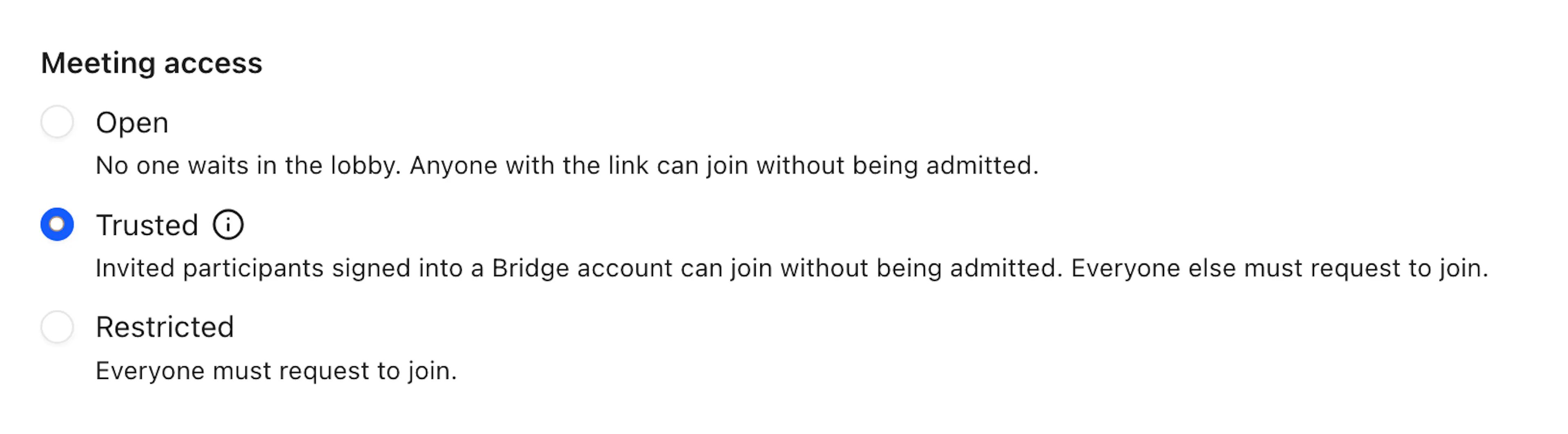
- Open: No one waits in the lobby. Anyone can join without being admitted.
- Trusted: Invited participants signed into a Bridge account can join without being admitted. Everyone else must request to join. This is the default account-level setting.
- Definition of "invited": participant was invited on the calendar event (when calendar is connected), invited from inside the meeting, invited from the person's profile, or someone who joined the meeting earlier chooses to rejoin.
- Restricted: Everyone must request to join.
Meeting access logic:
- At the account-level, if meeting access is changed, it changes any existing links and future links created from your account.
- Once you change the access controls for a specific meeting from the session preferences, only that specific meeting will now have the new access controls. The subsequent meetings using the same meeting link will revert back to your account preferences.
- If you want all meetings associated with a specific meeting link to have the same access controls, you will need to change your account preferences or change access per meeting from the session preferences.
- For drop-in meetings (meetings initiated from someone's profiles), those meetings will respect the meeting access controls as defined in your account preferences.
The meeting experience
Learn more about the overall meeting experience:
- Meetings as the host
- Meetings as a participant
- Guest experience (users without an account)
- Live collaboration
Learn more about Live AI available to you during meetings:
After the call
When the meeting ends, it's captured like any other Bridge conversation. You get a speaker-labeled transcript, AI meeting notes, a recording, and all other intelligence, available under Meetings → Completed.